
How-to Guide

Stravis Group Limited
Bank account reconciliation is one of the most important month-end tasks in any finance team. It confirms that what your accounting system thinks is in the bank matches what the bank actually shows. Business Central has a dedicated Bank Account Reconciliation tool that streamlines this process considerably, but understanding the mechanics, the difference formula, and the common errors that trip teams up will make the process far smoother.
A bank reconciliation compares your bank records (the bank statement) against your BC bank account ledger entries (what BC has recorded). The goal is to identify and resolve any differences - whether from timing (transactions not yet cleared), errors, or missing entries - until the two sides agree.
In BC, the reconciliation lives at Bank Account Reconciliation (search from the BC home screen). Each reconciliation is tied to a specific bank account and a specific statement date.
Navigate to Bank Account Reconciliations and select New. Choose the relevant bank account. BC will pre-populate the Balance Last Statement field from your last completed reconciliation for that specific bank account. This should match your prior closing balance on your prior bank statement.
Set the Statement Date to match your bank statement end date, and enter the Statement Ending Balance exactly as it appears on your bank statement.
You have four main options for getting your bank transactions into BC:
The reconciliation page is split into two sides:
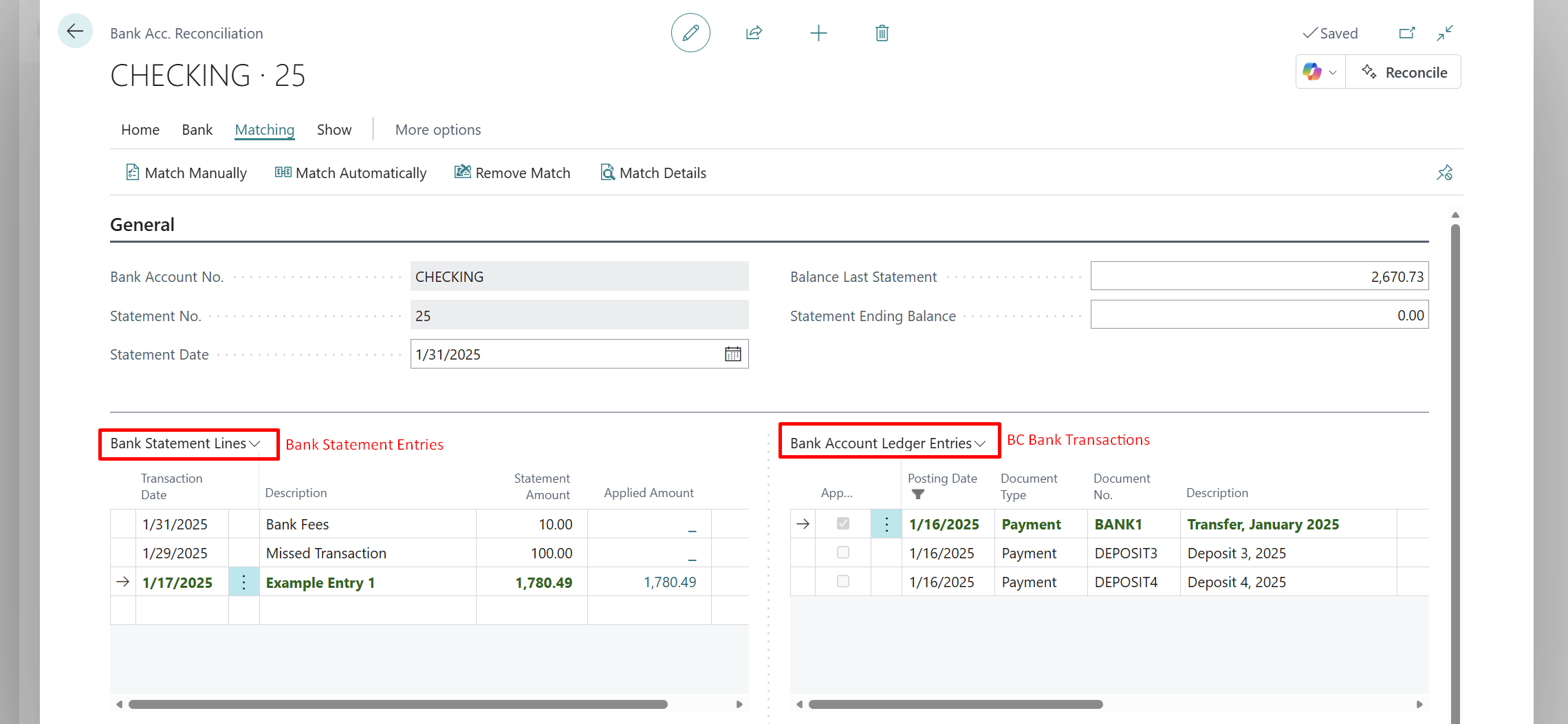
On the Matching menu option, use Match Automatically to let BC attempt matching based on amount, date, and description. BC will mark matched pairs green. Review these carefully - auto-matching is good but not perfect, particularly where amounts match but documents differ.
If you have Copilot (Microsoft AI) enabled (BC 2023 Wave 2+), it will attempt to auto-suggest matches and even draft a description of unmatched items. Many of our current clients have found the Copilot AI matching to be very successful.
For unmatched items, select a ledger entry on the right side and the corresponding bank line on the left side, then choose Match Manually.
Any remaining unmatched lines on either side represent a difference you need to resolve before posting. Common reasons include:
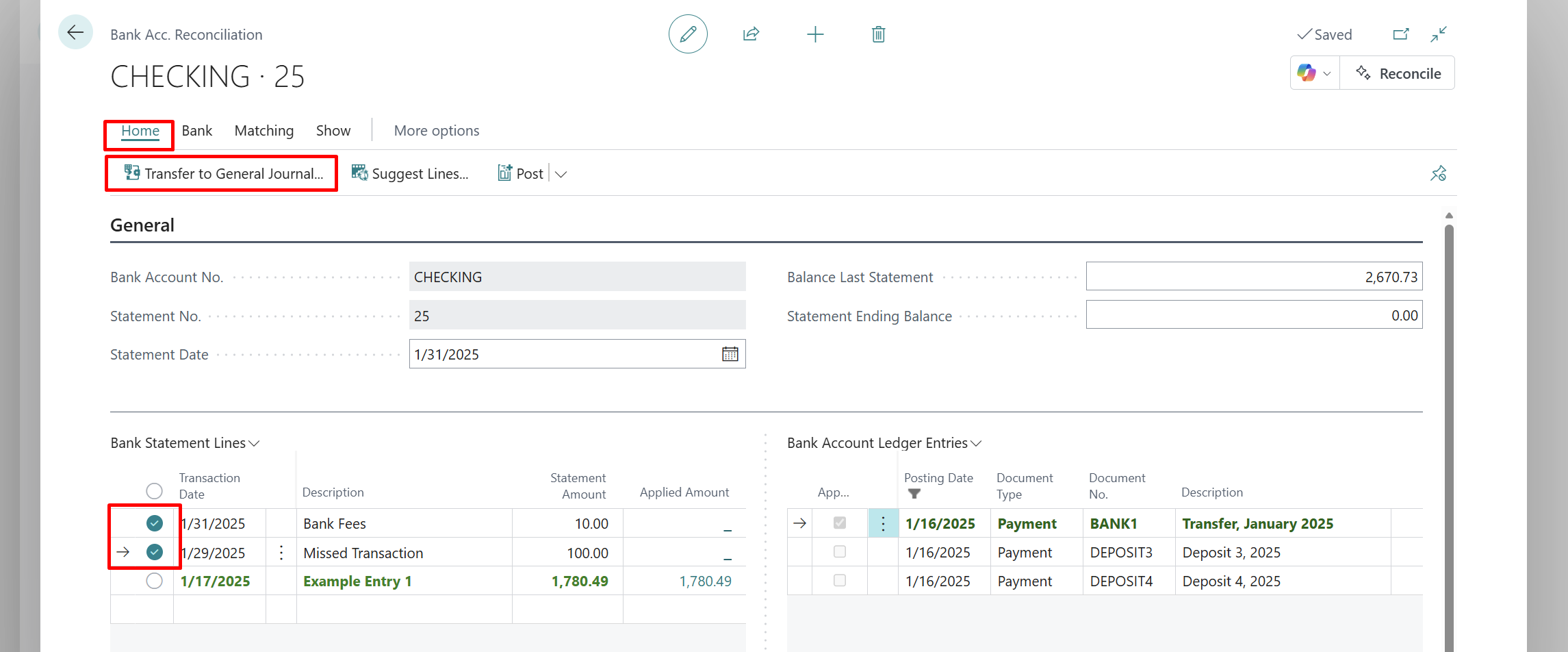
The Difference field in BC is the key indicator of whether your reconciliation balances. The total difference must reach zero before you can post. The formula is:
Difference = Statement Ending Balance - (Balance Last Statement + Outstanding Entries + Total Matched Entries)
If the difference does not equal zero, the gap tells you exactly how much is unaccounted for. Work through unmatched items on both sides until it reaches zero.
Once Difference = 0, click Post. BC will mark all matched bank ledger entries as closed (reconciled), update the Balance Last Statement on the bank account card ready for next month, and generate a Posted Bank Account Reconciliation.
Navigate to Posted Bank Statement List (also accessible from the bank account card). Open the relevant posted reconciliation and select Undo from the menu. This will undo the reconciliation and re-open all bank account ledger entries for rematching. Complete a new bank account reconciliation after this is done.
This means the sum of your bank statement lines plus the Balance Last Statement does not add up to the Statement Ending Balance entered. Check that a line is not missing from the import, the Statement Ending Balance was entered correctly, no line amount has been modified manually, and the Balance Last Statement matches your prior statement opening balance.
Confirm the Statement Ending Balance matches your bank statement exactly - a single digit transposition will cause this. Check the Balance Last Statement matches your prior reconciliation closing balance. Look for duplicate entries - the same transaction matched twice or entered twice in BC. Check for entries posted to the wrong bank account in BC.
The entry may have already been reconciled in a previous period (marked as closed), or posted to a different bank account. Use the Bank Account Ledger Entries page, filter by the account, and look for the entry directly. It may also be marked as matched on another unposted open bank account reconciliation.
If your Balance Last Statement in BC does not match last month closing balance, someone has likely posted an entry to the bank ledger in a prior period after it was already reconciled, a prior reconciliation was completed with an incorrect Statement Ending Balance, or a prior reconciliation was deleted. Trace back through bank ledger entries by date to find what changed.
If your bank account is in a foreign currency, BC will show the bank account ledger entries as the foreign currency value they were posted in. This should match what you see on the bank statement.