
Back to Insights and Support

How-to Guide

Article cover image

Business Central Permissions: A Practical Guide to Structure, Entra Integration, and Access Levels

Stravis Group Limited

Getting permissions right in Business Central is one of the most important, and most frequently underestimated, parts of any implementation. Done well, it means the right people have access to exactly what they need, nothing more. Done poorly, it creates security gaps, audit findings, and operational friction that compounds over time. This guide covers the full permissions architecture: how BC permissions are structured internally, how they connect to Microsoft Entra ID (formerly Azure Active Directory), and how the underlying access levels work.

The BC Permissions Architecture

Business Central permission system has four layers that work together:

  • Permission Sets - the base building blocks defining what a user can do
  • Permission Set Layering - how permission sets are combined (parent/child structure)
  • Security Groups - the mechanism for assigning permissions to groups of users
  • Entra ID Integration - how BC security groups connect to your organisation identity management

Understanding how these layers interact is key to building a permissions structure that is maintainable and auditable rather than a patchwork of individual user assignments.

‍

Permission Sets: The Foundation

A Permission Set in BC is a named collection of permissions across BC objects - tables, pages, reports, codeunits, and more. Each permission set defines exactly what a user assigned to it can see and do.

BC ships with a large library of system permission sets covering standard functional areas: posting journals, managing customers, running reports, and so on. You can also create custom permission sets for organisation-specific needs.

‍

Parent and Child Permission Sets: The Layered Approach

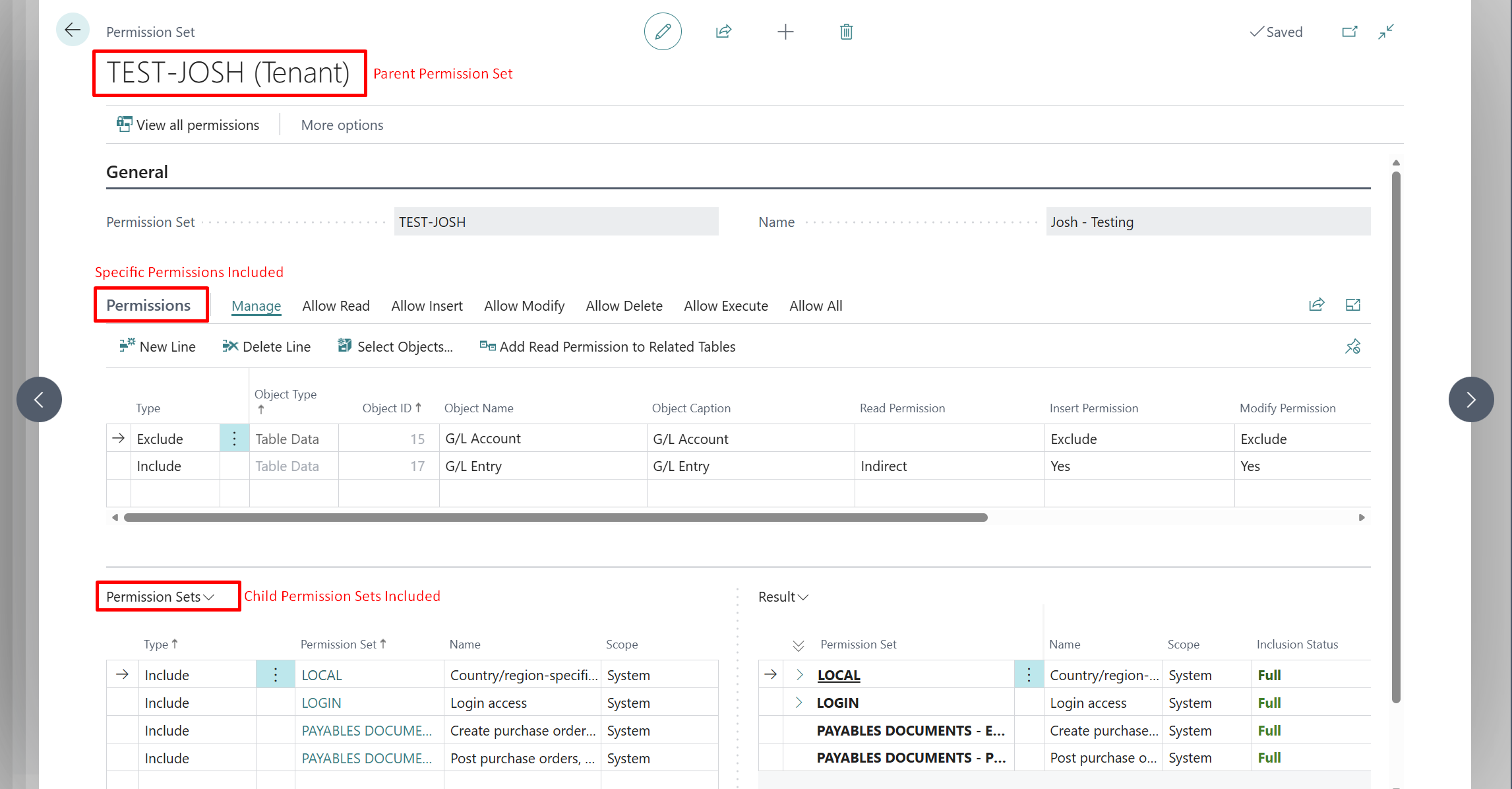
BC allows permission sets to include other permission sets, creating a parent/child structure that keeps things manageable at scale.

How It Works

In a Permission Set, you can add other permission sets, effectively linking them as children. When a user is assigned the parent permission set (directly or via a security group), they automatically inherit all permissions from every child permission set nested within it. This means you do not have to build one huge permission set with everything listed table by table, or assign ten different permission sets to one user. You layer them.

Recommended Structure

  • Create one parent permission set per role (e.g. Finance-Manager, Sales-User, Warehouse-Picker).
  • Within the parent, include multiple child permission sets covering the specific functional areas that role needs.
  • Child permission sets should be granular and single-purpose - this makes it easy to add or remove a capability from a role without rebuilding everything.

This approach means you can reuse child permission sets across multiple parent roles that share some of the same requirements, and auditing is straightforward - one parent set per role, clearly named.
‍

Security Groups: Connecting Roles to Users

Security Groups in BC (available from BC 2023 onwards) are the mechanism for assigning permission sets to groups of users rather than individuals. Each security group has one or more permission sets assigned to it, and users added to the group inherit those permissions automatically.

The critical best practice: assign only the parent permission set to the security group. Everything flows down from there via the parent/child structure. This keeps the security group assignment clean and makes it immediately obvious what a group role is.

‍

Entra ID Integration: Managing Group Membership Centrally

The most powerful aspect of BC modern permission architecture is the integration with Microsoft Entra ID (formerly Azure AD). Instead of managing group membership inside BC, you can assign a security group in Entra ID and the BC user will be reflected with those permissions automatically.

How the Integration Works

  • Create a Security Group in Entra ID - this is your authoritative group (e.g. BC-Finance-Managers in Entra).
  • Create a matching Security Group in BC - go to Security Groups in BC, create the group, and link it to the Entra group using the Entra Group ID.
  • Assign the parent permission set to the BC security group.
  • Add users to the Entra group - BC syncs membership automatically (sync runs on login and can be triggered manually).

Why This Matters

  • IT and HR can control BC access through the same identity system used for the rest of Microsoft 365.
  • Onboarding and offboarding become a single Entra operation - adding someone to the right Entra group gives them BC access automatically; removing them revokes it.
  • Access reviews and audit trails live in Entra alongside all other application access.
  • Conditional access policies (MFA requirements, device compliance) apply to BC access through Entra.
  • It removes the previous issue of new BC users inheriting high access permissions.

Practical Naming Convention

  • Entra group: BC-[Department]-[Role] - e.g. BC-Finance-Manager, BC-Warehouse-Picker
  • BC Security Group: match exactly or use the same naming pattern
  • Parent Permission Set: [Department]-[Role] - e.g. Finance-Manager

‍

How Permission Layering Works

When a user has permissions assigned from multiple sources, BC combines them using an additive model with one important exception.

Additive Permissions

Permissions are generally additive. If Permission Set A gives Read access to the Customer table, and Permission Set B gives Modify access to the same table, the user effectively has both Read and Modify. The most permissive level from any source wins, for each object individually.

The SUPER Exception

The built-in SUPER permission set grants unrestricted access to everything in BC. Any user with SUPER effectively bypasses all other permission logic. SUPER should be limited to a small number of system administrators and should never be assigned as a shortcut to resolve a permission issue.

Permission Set Exclusions

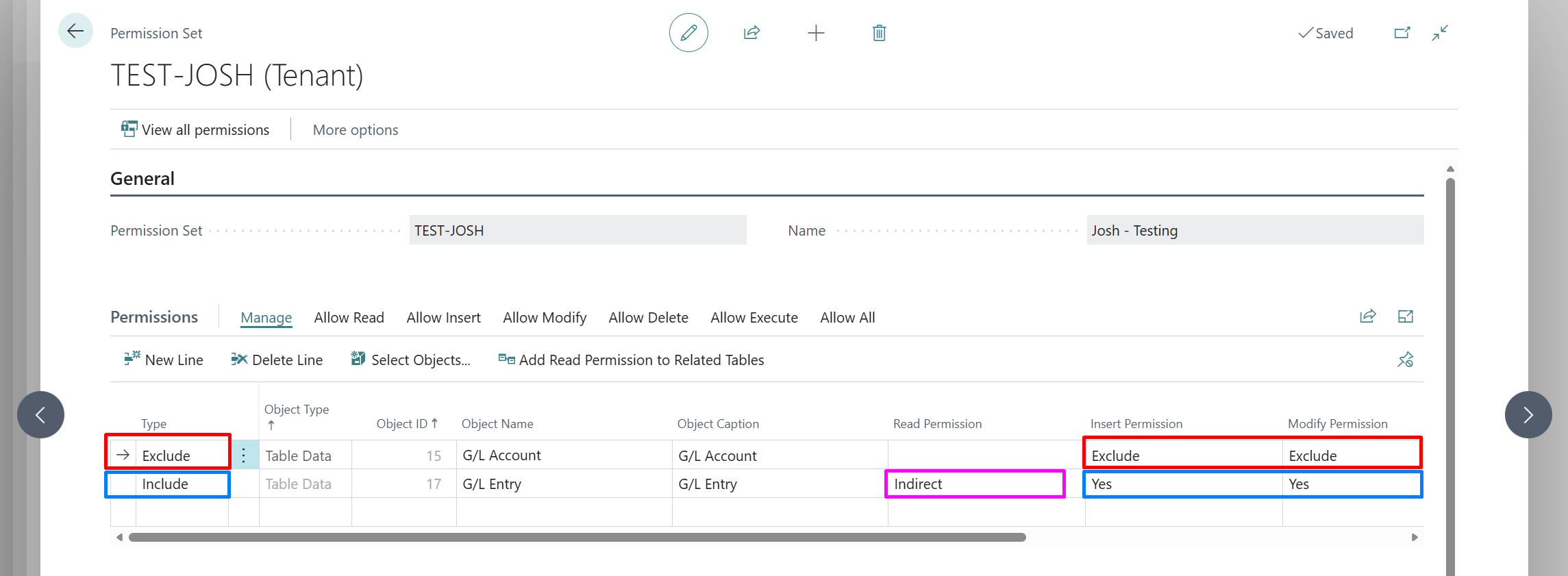
BC now supports Permission Set Exclusions. You can explicitly exclude a permission set from a user or group, overriding additive permissions. This is useful for edge cases but should be used sparingly as it adds complexity to the audit trail. This is done by adding a specific line to a permission set with Type = Exclude. Note: at this point the exclude functionality does not work with Security Filters.

‍

Table Data Access Levels

The most granular level of permissions in BC is TableData access. For any given table, you can set independent access levels for each operation:

  • None (Exclude) - no access to this table whatsoever; records are invisible to the user
  • Read - can view records in the table but cannot create, change, or delete
  • Insert - can create new records (must include Read)
  • Modify - can edit existing records (must include Read)
  • Delete - can delete records (must include Read)

These levels are set independently, so you can grant Read + Insert without Modify or Delete - useful for data entry roles that should not be able to change historical records.
Direct vs Indirect Access

Each tabledata permission also has a Direct/Indirect distinction:

  • Direct - the user can access the table directly through a page or list (e.g. they can open an Item and modify the Item details directly)
  • Indirect - the user cannot access the table directly, but a codeunit or process they have permission to run can access the table on their behalf (e.g. they post a purchase transaction that in the background updates the Last Cost field on the Item, but they cannot modify the Item directly)

Indirect access is important for transactional tables where users should not be browsing raw records but do need the underlying table data to be read or written as part of a workflow. Most posting routines write to ledger tables, and users need Indirect Insert on those tables to post, even though they should never be editing ledger entries directly.

The practical rule: give Direct access only to tables the user will interact with through a page or report. Give Indirect access to backend tables accessed only through processes and codeunits.

Security Filters

Security Filters are an advanced permission feature that adds row-level security, restricting which records within a table a user can see, not just whether they can access the table at all.

A security filter is a filter expression applied to a tabledata line in a permission set. For example:

  • Restrict a user to records where Location Code = AUCKLAND - they can access the Inventory table but only see Auckland stock.
  • Restrict a salesperson to records where Salesperson Code = their own code - they can access the Customer table but only see their own customers.

Security filters are powerful but add significant complexity to troubleshooting. If a user cannot see a record they expect to, a security filter is often the culprit and can be hard to trace. Use them deliberately and document them carefully.

‍

Common Mistakes and How to Avoid Them

  • Assigning permissions directly to individual users - this bypasses the group structure entirely and becomes harder to audit or maintain at scale. Every permission should flow through a security group.
  • Using a single monolithic permission set - one giant permission set per role is hard to maintain and impossible to reuse. You will build the same base permission lines into multiple permission sets. Build granular child sets and compose them.
  • Giving everyone SUPER temporarily - it is never temporary. Build a proper admin role with an audit trail rather than using the built-in SUPER set broadly.
  • Ignoring Indirect vs Direct on posting tables - users who post journals but cannot post are almost always missing Indirect access on the relevant ledger or entry tables.
  • Not reviewing permissions after BC updates - Microsoft updates system permission sets with each release. Review child permission sets built from system sets after major updates.
  • Skipping security filters documentation - if you implement security filters, document every one of them in a permissions register.

‍

Recommended Implementation Checklist

  • Define roles before touching BC permissions - map your job functions to BC roles on paper first.
  • Build one parent permission set per role, composed of child sets.
  • Create Entra security groups matching your BC roles.
  • Link BC Security Groups to Entra groups.
  • Assign only the parent permission set to each BC Security Group.
  • Test permissions extensively and allow appropriate budget for remediation if you intend to be granular.
  • Limit SUPER to named system administrators only.
  • Document any security filters implemented.
  • Schedule a permission review after each major BC update.